How Tot Up works
No tour, no jargon — this is the actual app, screen by screen, from the first tap to all square.
1. Start a trip
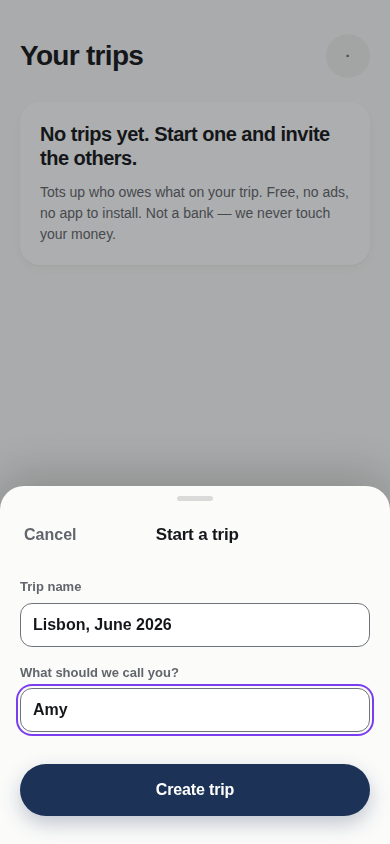
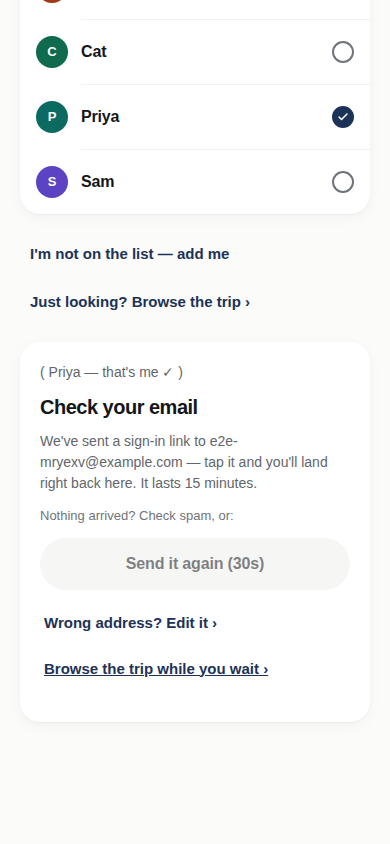
One question: what’s the trip called? “Lisbon, June 2026” will do. Then add your friends by first name — nobody else needs to have done anything yet. You sign in with your email the first time: we send you a link, you tap it, you’re in. No password to invent, nothing to install — Tot Up runs in the browser you already have.
2. Share one link
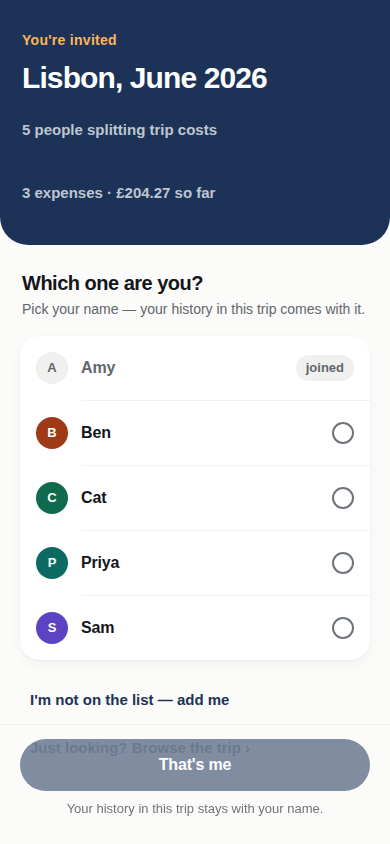
Every trip has one invite link. Drop it in the group chat. Anyone who taps it can look at the trip straight away; to join in, they pick their name from “Which one are you?” and sign in with their email — two taps and an inbox visit, no passwords. Fair warning, stated in the app too: anyone with the link can see and add to the trip, so only share it with your group. If it ever leaks, the organiser can replace it and the old link dies instantly.
3. Add expenses as you go
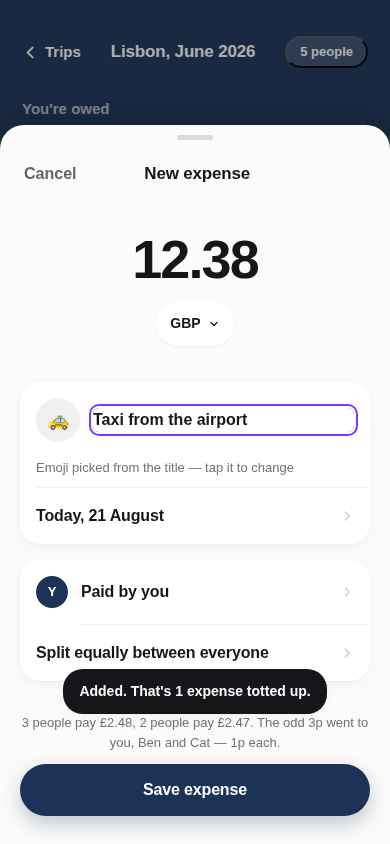
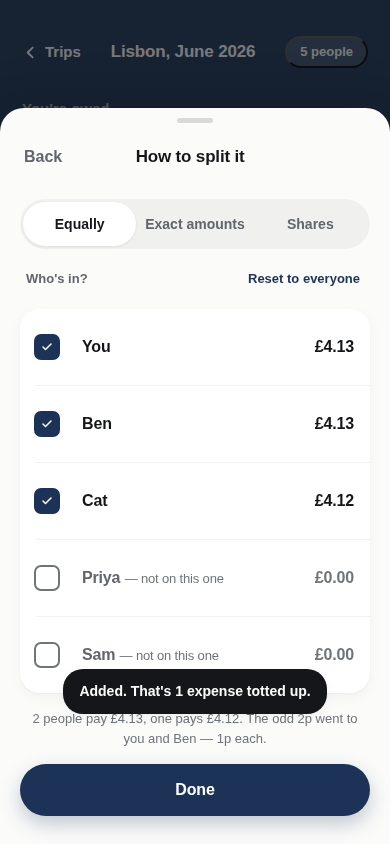
Whoever pays, adds it: how much, what it was, done. The sentence under the amount — “Paid by you · split equally between all 5 · today” — is the whole setup, and each part is one tap to change. Splitting unevenly takes two taps: just some people, exact amounts, or shares (say, 2 for the couple, 1 for everyone else). Every expense gets a little emoji, picked from the title — tap it to change it. And if the bar wifi drops mid-save, the expense is kept safely on your phone and syncs when you’re back online — it’s never lost.
4. Any currency, converted honestly
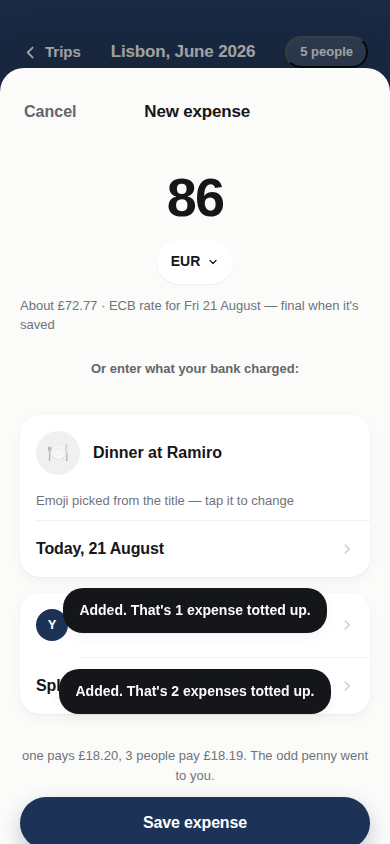
Paid in euros? Enter €86.00 and Tot Up converts it to pounds at the European Central Bank’s official rate for the day you paid — and shows its working right on the expense: the rate, the date, the source. If you’d rather use exactly what your bank charged, type that instead; the expense then says “set by you” instead of quoting a rate. Nothing is ever silently recalculated later.
The full detail — rates, odd pennies, and how to check us — is on Fair maths ›
5. Everyone sees why
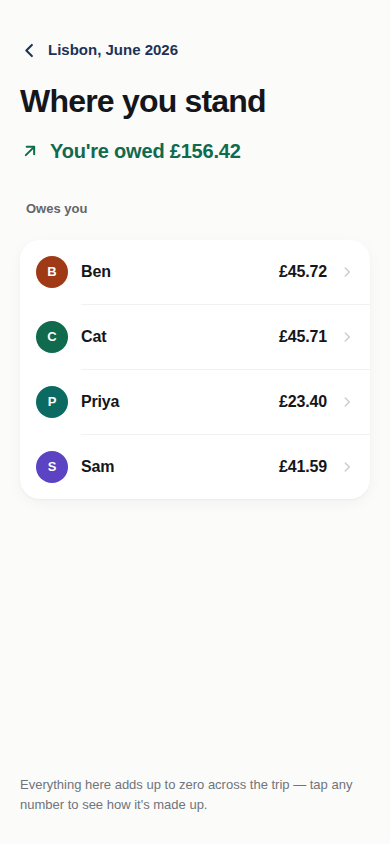
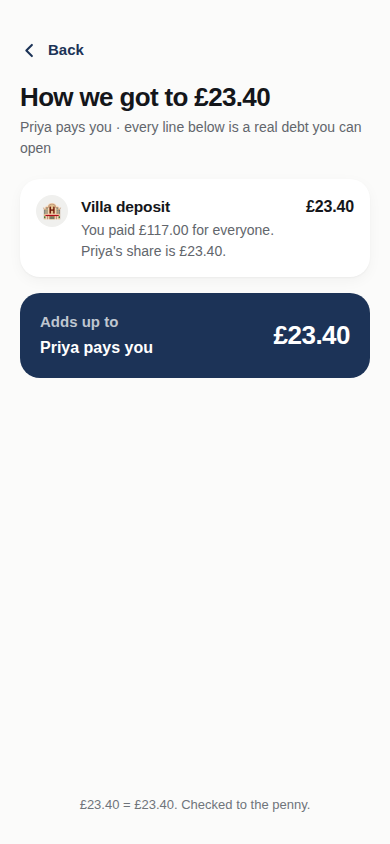
“Where you stand” gives you one plain sentence — you owe, you’re owed, or you’re all square — and every figure opens up. Tap “How we got to £23.40” and you’ll see the exact expenses behind it: what you paid, what your share was, summing to the penny. Anyone can check anyone’s number. That’s the point.
6. Anyone can fix a mistake — and nothing vanishes
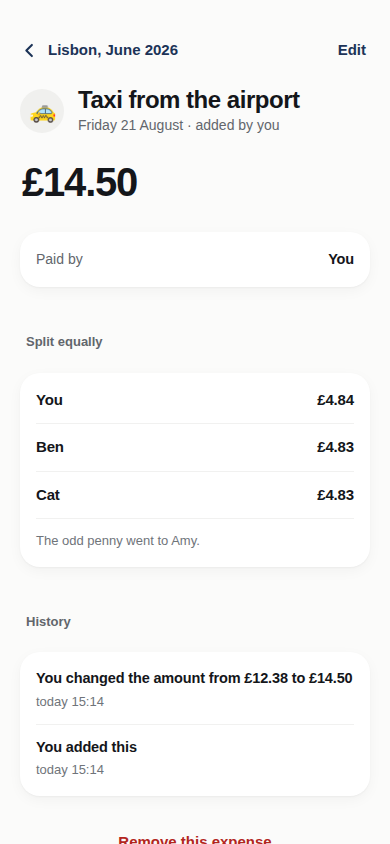
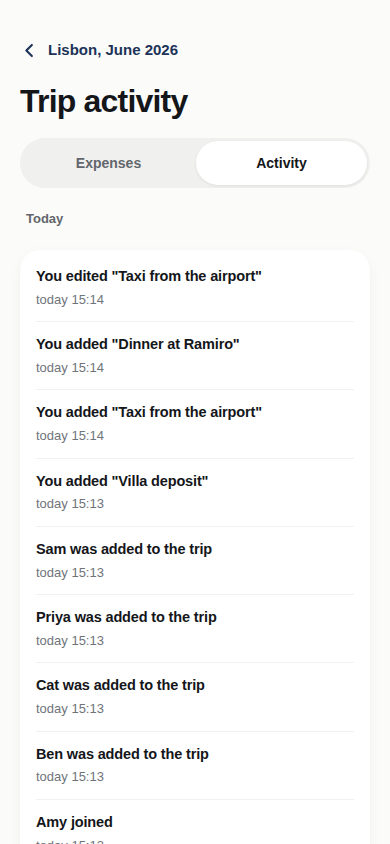
Wrong amount? Someone left off the split? Anyone in the trip can edit or remove any expense. But history is written in pen, not pencil: every change shows who made it and what it was before — “Ben changed the amount from €80 to €84” — and a removed expense stays visible, with one tap to put it back. Nobody can quietly rewrite the trip.
7. Cash counts too
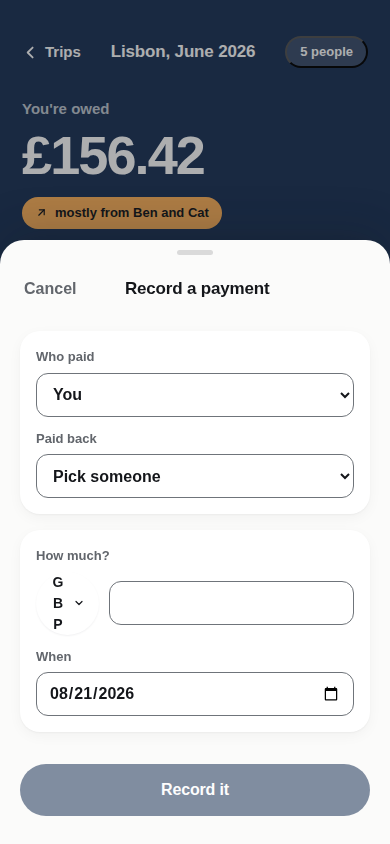
Handed Sam two twenties at the airport? Record a payment — it goes in the ledger like anything else, and the balances move. You can settle up mid-trip whenever you like; new expenses just stack on top.
8. Settle up
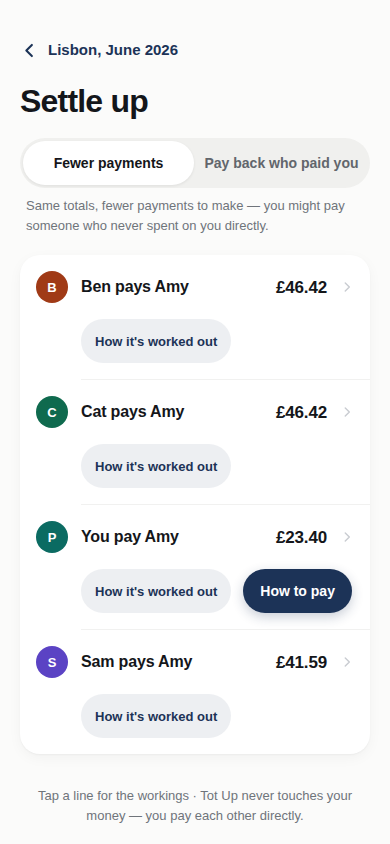
One tap turns the whole trip into a short list: “Priya pays Sam £41.20.” The debts are chained together so the group squares up in fewer payments — and everyone in the trip sees that same list, so nobody is settling from a different picture. Because chaining can mean paying someone who never spent on you directly, every line opens up to show exactly how it was worked out.
9. Pay each other, not us
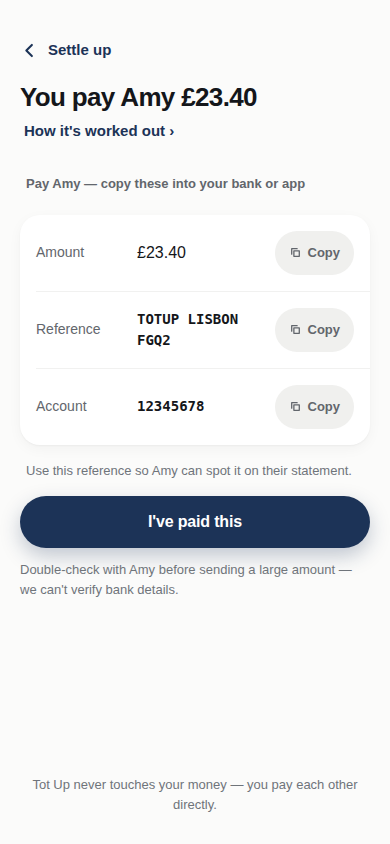
Tot Up never touches your money. Each payment line gives you the payee’s details the way they chose to share them — bank details to copy straight into your banking app, or a Monzo or PayPal link (PayPal opens with the amount already filled in) — plus a short reference like TOTUP LISBON 3F7K, so the payment is easy to spot on a bank statement. Then both sides confirm: the payer taps “I’ve paid”, the payee taps “Got it”, and only then do the balances move. No awkward chasing — the ledger speaks for itself.
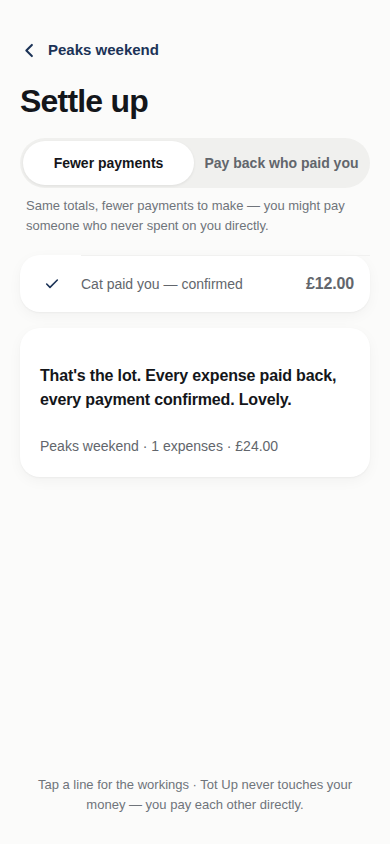
10. All square
When every payment is confirmed, the trip is done: every expense paid back, every payment confirmed. The trip stays exactly as it was — browse it, export the whole history as a spreadsheet any time, free, forever. Your data is yours.